

To install Node.js on your operating system, you can follow these steps:
- Visit the official Node.js website at https://nodejs.org/en/ and download the appropriate installer for your operating system.
- Once the download is complete, run the installer and follow the installation wizard’s prompts.
- Accept the license agreement and choose the installation directory.
- Choose the components you want to install. Typically, you’ll want to install the Node.js runtime and the npm package manager.
- If you’re given the option to add Node.js to your system path, make sure to do so. This will allow you to use Node.js and npm from any directory on your system.
- Complete the installation process and verify that Node.js is installed by opening a terminal or command prompt and running the command
node -v. This should print the version number of the installed Node.js runtime. - Optionally, you can also install a text editor or integrated development environment (IDE) that supports Node.js development, such as Visual Studio Code or Atom.
Once you have completed these steps, you should be able to start developing Node.js applications on your operating system.
Getting Started
Once you have downloaded and installed Node.js on your computer, let’s try to display “Hello World” in a web browser.
Create a Node.js file named “myfirst.js”, and add the following code:
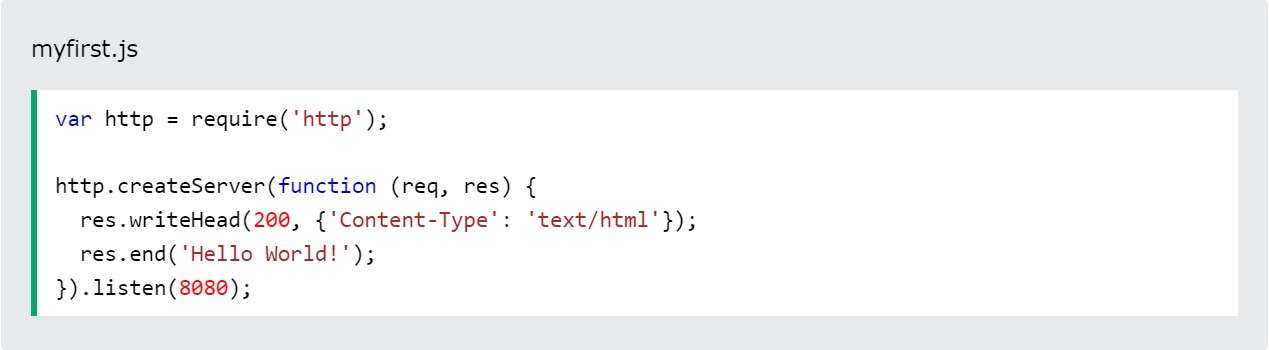
Save the file on your computer: C:\Users\Your Name\myfirst.js
The code tells the computer to write “Hello World!” if anyone (e.g. a web browser) tries to access your computer on port 8080.
For now, you do not have to understand the code. It will be explained later.
Command Line Interface
Node.js files must be initiated in the “Command Line Interface” program of your computer.
How to open the command line interface on your computer depends on the operating system. For Windows users, press the start button and look for “Command Prompt”, or simply write “cmd” in the search field.
Navigate to the folder that contains the file “myfirst.js”, the command line interface window should look something like this:

Initiate the Node.js File
The file you have just created must be initiated by Node.js before any action can take place.
Start your command line interface, write node myfirst.js , and hit enter:

Now, your computer works as a server!
If anyone tries to access your computer on port 8080, they will get a “Hello World!” message in return!
Start your internet browser, and type in the address: http://localhost:8080