

Node.js is an open-source server-side JavaScript runtime environment that is built on the Chrome V8 JavaScript engine. One of the key features of Node.js is its ability to use modules, which are essentially reusable blocks of code that can be easily imported and used in other parts of an application.
In this article, we will explore modules in Node.js and how they can be used to build scalable and maintainable applications.
What are Modules in Node.js?
In Node.js, a module is a file or a directory that contains a set of functions, variables, and other code that can be reused in other parts of the application. Each module in Node.js has its own scope, meaning that the variables and functions defined in one module are not visible to other modules unless they are explicitly exported.
Node.js supports two types of modules: core modules and file modules. Core modules are built-in modules that come with Node.js, while file modules are custom modules that are created by developers.
Core Modules in Node.js
Node.js comes with a set of core modules that provide a wide range of functionality, including file system operations, network operations, and cryptography. These modules can be accessed using the require() function, which is a built-in function in Node.js that is used to load modules.
For example, to use the built-in file system module (fs) in Node.js, you can use the following code:

This will load the fs module and make it available in the current module.
File Modules in Node.js
File modules in Node.js are created by developers and are used to organize the code into reusable and maintainable blocks. To create a file module in Node.js, you need to create a new JavaScript file that exports the required functions and variables using the module.exports object.
For example, let’s say you have a file called “math.js” that contains some mathematical functions that you want to use in other parts of your application. To export these functions, you can use the following code:
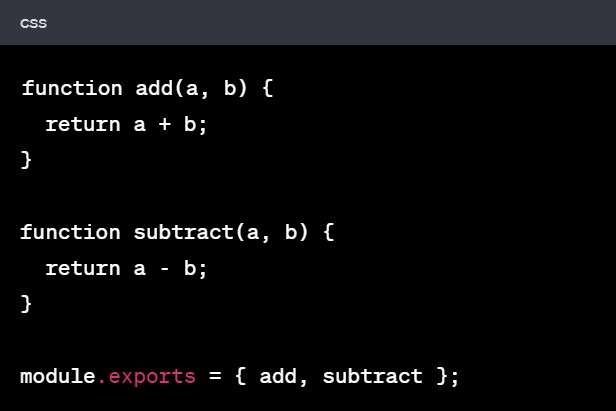
This will export the add() and subtract() functions from the math.js module, which can be used in other parts of your application by requiring the module using the require() function.
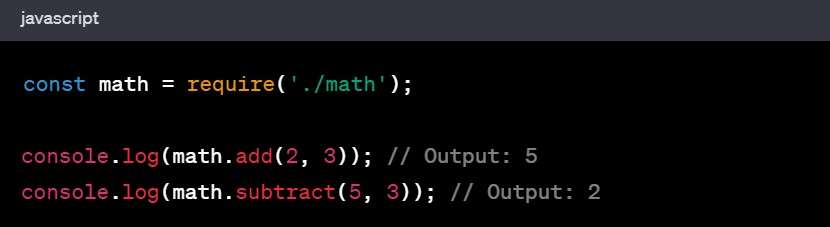
Here, the “./math” argument in the require() function specifies the path to the math.js file, which is located in the same directory as the current module.
Conclusion
In conclusion, modules in Node.js provide a powerful way to organize and reuse code in your application. By using modules, you can build scalable and maintainable applications that are easy to debug and modify.
Node.js supports two types of modules: core modules and file modules. Core modules are built-in modules that come with Node.js, while file modules are custom modules that are created by developers.
To use a module in Node.js, you need to load it using the require() function, which is a built-in function in Node.js. File modules are created by developers and are used to organize the code into reusable and maintainable blocks.
By using modules in Node.js, you can build complex applications that are easy to maintain and extend, making it a popular choice for building web applications, APIs, and other server-side applications.
What is a Module in Node.js?
Consider modules to be the same as JavaScript libraries.
A set of functions you want to include in your application.
Built-in Modules
Node.js has a set of built-in modules which you can use without any further installation.
Look at our Built-in Modules Reference for a complete list of modules.
Include Modules
To include a module, use the require() function with the name of the module:

Now your application has access to the HTTP module, and is able to create a server:

Create Your Own Modules
You can create your own modules and easily include them in your applications.
The following example creates a module that returns a date and time object:
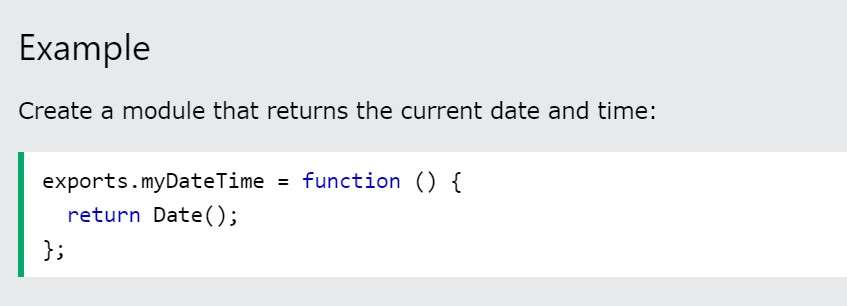
Use the exports keyword to make properties and methods available outside the module file.
Save the code above in a file called “myfirstmodule.js”
Include Your Own Module
Now you can include and use the module in any of your Node.js files.
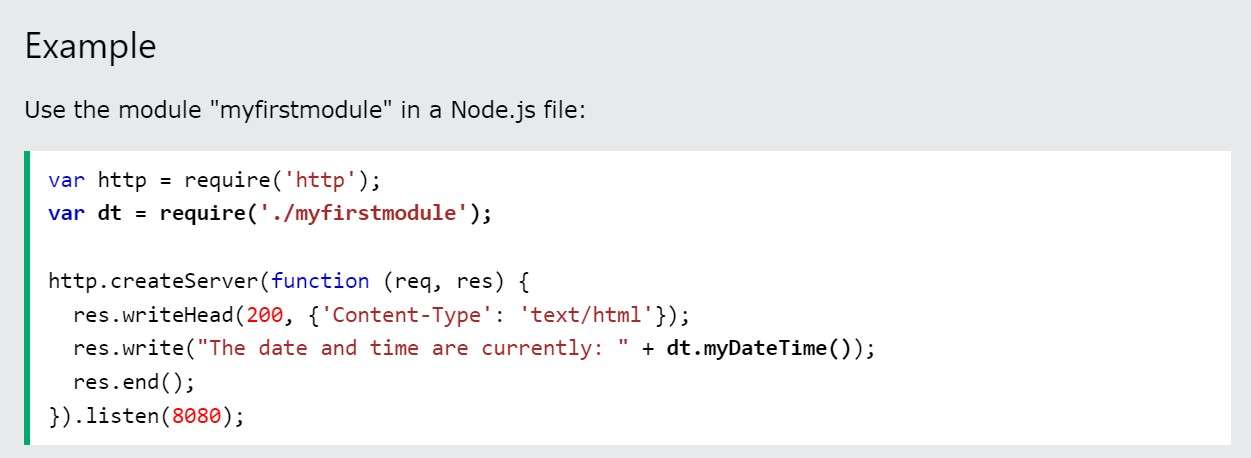
Notice that we use ./ to locate the module, which means that the module is located in the same folder as the Node.js file.
Save the code above in a file called “demo_module.js”, and initiate the file:

If you have followed the same steps on your computer, you will see the same result as the example: http://localhost:8080